
Speech recognition is very good at everyday words and much less sure about the words that matter most to you: your company name, a colleague’s surname, an internal project code or a niche acronym. These words are rare, so the transcript often spells them the way they sound. Key terms let you hand TranscribeAny a short list of those words before transcription, so it listens for them and spells them your way.
Short version: list the unusual words you expect to hear, separated by commas, in Key terms before you start. We tested a fictional 15-second clip with and without them: four of six tricky names came back spelled differently without key terms, and all six were exact with them.
What key terms do (and don’t do)
Key terms give the transcription engine context. When the audio contains something that sounds like one of your terms, the engine favours your spelling, capitalisation and punctuation over a generic guess. They work best for proper nouns, brand names, technical vocabulary and acronyms that have a single correct written form.
- They improve spelling of words that are actually spoken. They do not insert a word nobody said.
- They cannot recover speech that is inaudible, cut off or buried in noise.
- They guide recognition but are not a guarantee: always skim names in the finished transcript.
- They apply to the whole recording. Every file in the same upload batch uses the same list.
Which plan and workflow do you need?
- Key terms are available on Pro Unlimited and Business Unlimited. On Free Unlimited the field is shown but locked.
- File uploads accept up to 1000 terms. Each term can be up to 49 characters and five words.
- Live recording also supports key terms, with a shorter list: up to 50 terms of 20 characters each.
- Key terms combine with other options such as speaker labels, filler-word removal, Medical transcription and saved presets.
Unlock Key Terms
Pro Unlimited is built for individual work and Business Unlimited for shared workspaces. Both include key terms on uploads and live recordings.
Compare PlansOur test: the same clip, with and without key terms
We recorded a fictional 15-second product update full of invented names, then uploaded the identical file twice using the real upload flow, once with the Key terms box empty and once with a six-term list. Nothing else changed. The script was:
“This is a fictional product sync for training only. Priya from Quillmark confirmed the Zentrovix dashboard ships Thursday. The Orbisync connector still fails on the KVX-9 gateway, so Marisol Okafor-Venn will patch it before the Halvora demo.”
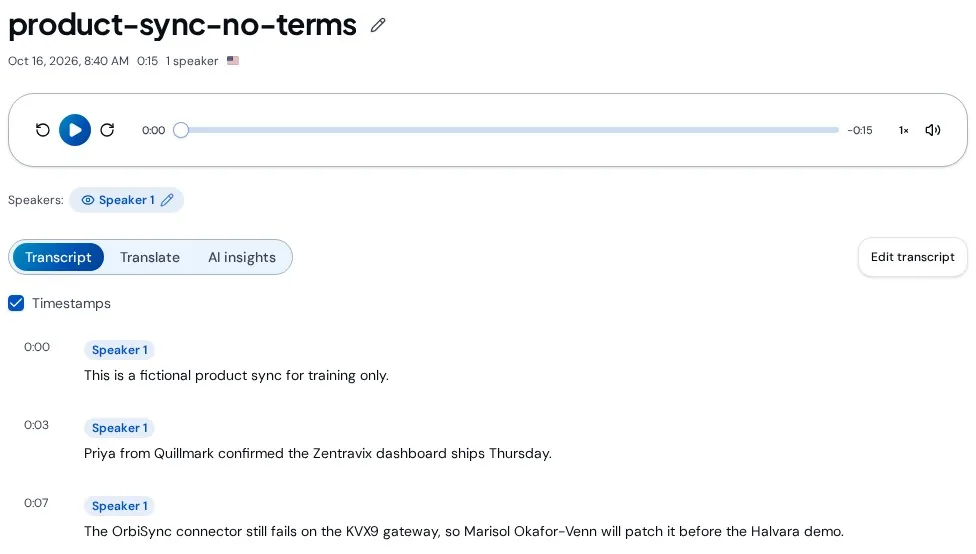
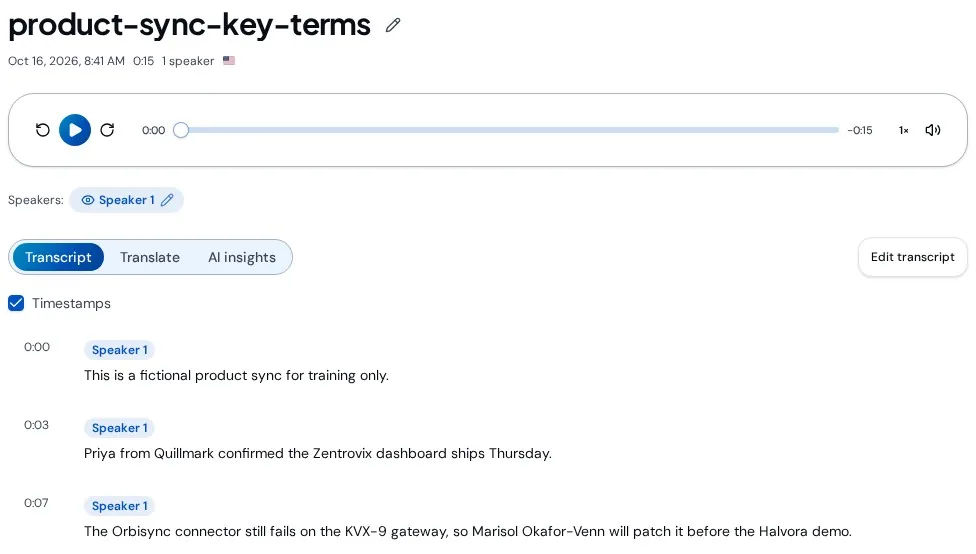
Notice that the engine already handled Quillmark and Marisol Okafor-Venn on its own. Key terms matter most for the words that are ambiguous to the ear: invented brand names, unusual capitalisation and codes mixing letters, numbers and symbols. One clean, short clip is a demonstration, not a benchmark; results vary with audio quality and accent.
Step 1: Open Transcription options
Sign in and go to New Transcription. Choose Upload File and set the spoken language. If you do not own or belong to a workspace or team, Transcribe this for and its Myself (private) and workspace choices are hidden; your recording stays private automatically. If the choices are visible, choose the intended destination before starting. Below the language selector, expand Transcription options.
Step 2: Type your key terms
Find Key terms (optional) and type your words separated by commas. Write each term exactly as you want it to appear in the transcript, because that spelling is what the engine aims for.

If any term is too long or over the limit, TranscribeAny tells you which ones will be skipped before you start, so nothing is silently dropped.
Step 3: Add the file and start
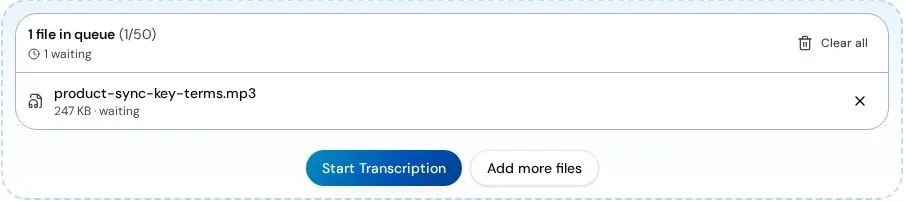
Select Choose files or drag the recording onto the upload area. Check the filename in the queue, then select Start Transcription. Keep the tab open until the upload finishes; after that the recording is queued and you can leave.
Step 4: Check the names in your transcript
Open the finished recording and skim for your terms. Click any line to hear that moment. If a name is still off, select Edit transcript and use find and replace to fix every occurrence at once. To try again with a better list, choose Transcribe again… from the three-dot menu, adjust Key terms, and start a new run; your current transcript stays until the new one succeeds.
How to write a great key terms list
- Include only words that are hard to guess: brand and product names, surnames, place names, acronyms and internal codes. Common words like “meeting” or “budget” add nothing.
- Use the exact written form: Okafor-Venn, KVX-9, iOS, eBay. Spelling, capitals and punctuation all carry over.
- Keep each term short. Names and two- or three-word phrases work best; full sentences do not help.
- Add the people speaking and the people they mention, especially names with unusual spellings (Siobhan, Nguyen, Aoife).
- Tailor the list to the recording. A focused list of 10–30 relevant terms beats pasting a giant glossary every time.
- Save it as a preset. Under Presets, name your settings (for example “Weekly product sync”) so recurring meetings reuse the same list in one click.
Great uses for key terms
- Team meetings: product names, customer accounts and colleagues’ names.
- Interviews and podcasts: guest names, companies and book or show titles.
- Lectures and research: technical vocabulary, chemical names and author surnames.
- Sales and support calls: plan names, SKUs and competitor brands.
- Clinical dictation: pair key terms with Medical transcription for specific drug names, and still review every detail.
Try It On Your Next Recording
Already on Pro Unlimited or Business Unlimited? Open New Transcription, expand Transcription options and add the names that matter.
Open The Upload PanelTroubleshooting
- Field is greyed out: key terms need Pro Unlimited or Business Unlimited.
- A term was skipped: shorten it to 49 characters and five words or fewer (20 characters on live recordings).
- Name still misspelled: check it is spelled the same way in your list, that the audio is clear, and that the right language is selected.
- A term appears where it wasn’t said: remove very short or generic terms that sound like common words, then transcribe again.
About this guide
Checked on October 16, 2026 against TranscribeAny’s current settings. The audio is a fictional, synthetic recording and both transcripts shown are the actual results. Product behaviour can change with updates, so confirm the current options in the app.
Questions About Key Terms?
Tell us what you are transcribing and which words keep coming out wrong, and we will help you tune your list.
Contact Support