Record a tab lets TranscribeAny listen to the sound playing in another browser tab, like a webinar, an online meeting, a YouTube video or a podcast player, and turn it into a live transcript. Because the sound comes straight from the tab, there is no room noise, no echo and no need to hold a microphone near your speakers.
Record a tab is available on Pro Unlimited and Business Unlimited, on desktop computers only. Phones and tablets cannot share another tab's sound, so the option does not appear there.
Which Browsers Support Tab Audio?
- Google Chrome: full support, including tab sound (Windows, Mac, Linux, ChromeOS).
- Microsoft Edge: full support, including tab sound.
- Brave, Opera, Vivaldi and Arc: full support, they share Chrome's tab picker.
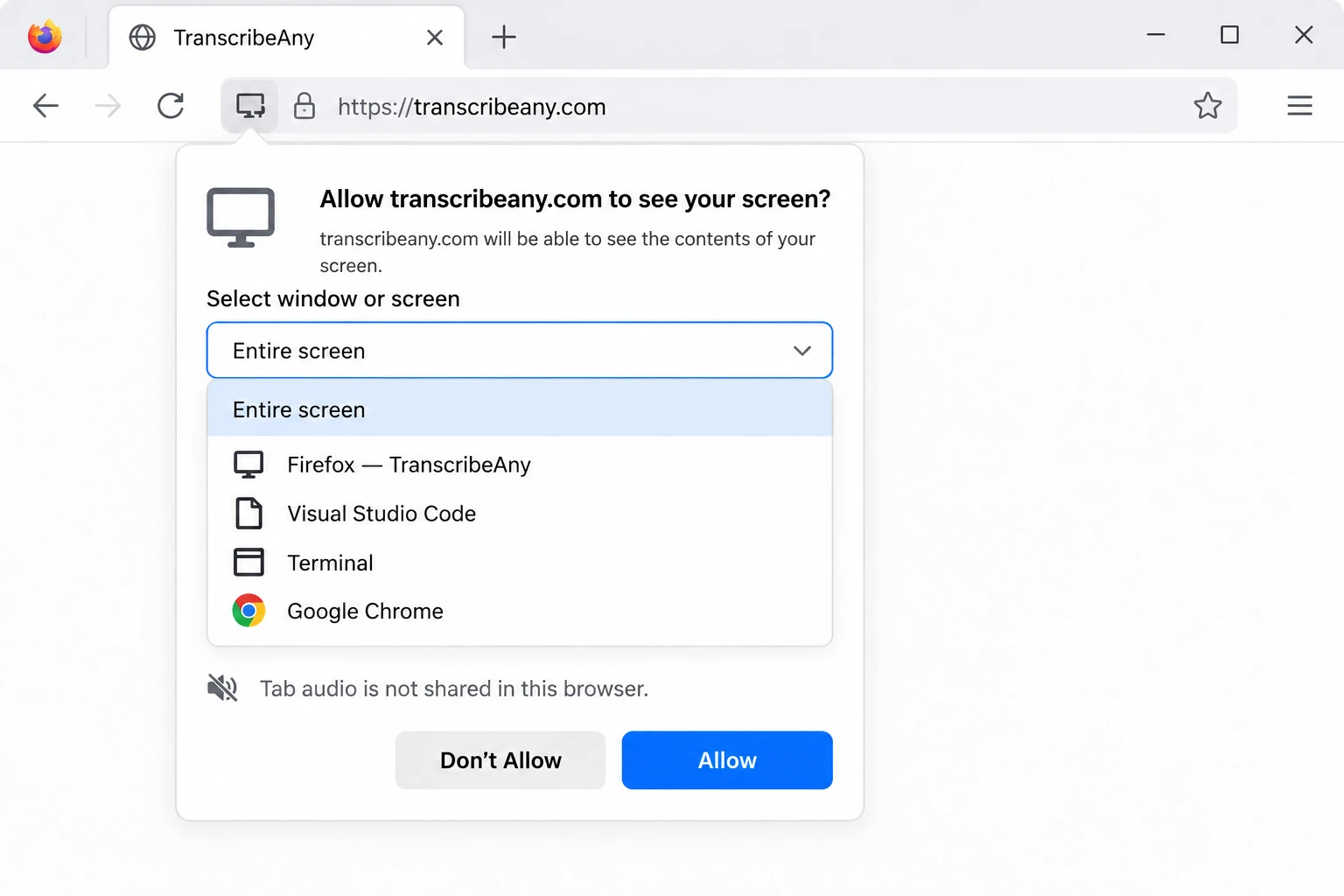
- Firefox: can share a window or screen, but does not send tab sound, so transcription will not start.
- Safari on Mac: can share a window or screen, but does not send tab sound either.
For the best results, use Chrome or Edge. If you normally use Firefox or Safari, open TranscribeAny and the tab you want to record in Chrome or Edge just for the recording.
Step 1: Open Record Live In Your Dashboard
Sign in, open your dashboard and choose Record Live under Select A Transcription Method. Pick a language if you know it; automatic detection works well too.

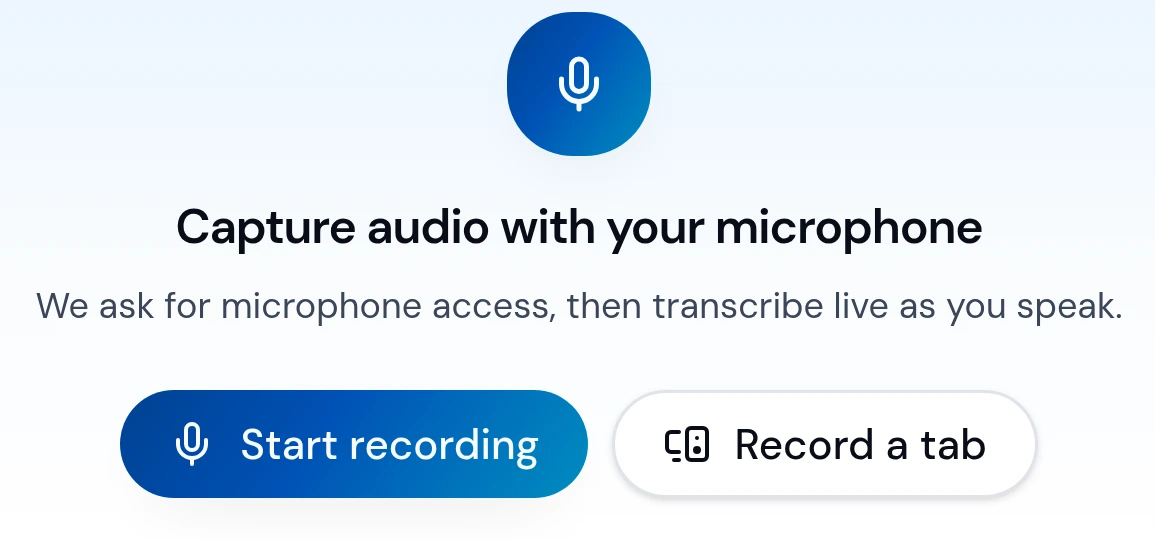
Step 2: Click Record A Tab
Start playing the video or meeting in another tab first, so you can find it easily. Then click Record a tab next to Start recording. Start recording uses your microphone; Record a tab uses the sound of another tab.
Step 3 In Google Chrome, Brave, Opera Or Vivaldi
- In the Choose what to share window, stay on the Chrome Tab section.
- Click the tab that is playing the sound you want transcribed.
- Make sure Also share tab audio is switched on (it is usually on already).
- Click Share. The transcript starts appearing within a couple of seconds.
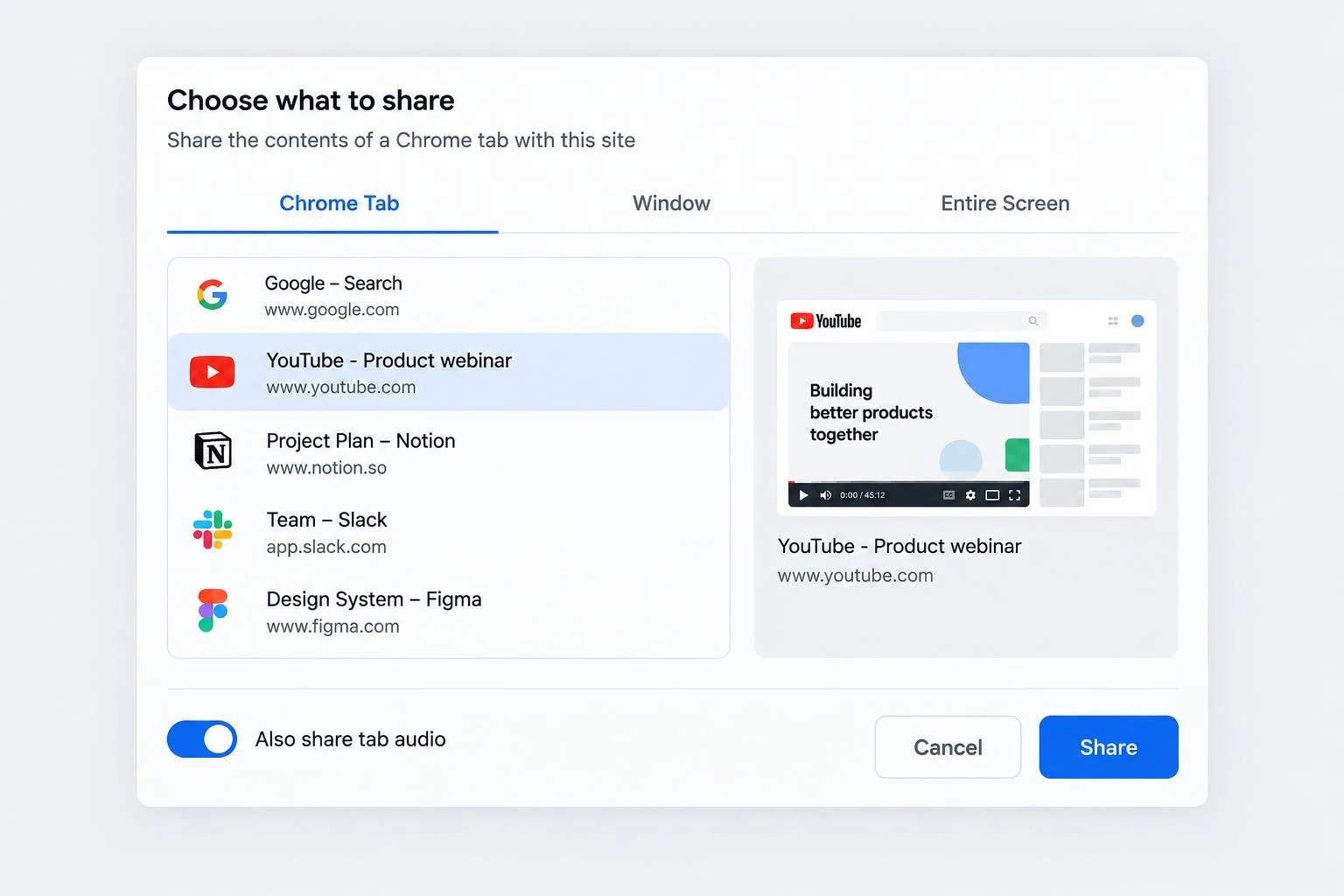
Choosing Window or Entire Screen in Chrome does not send sound on most computers. Always pick a tab.
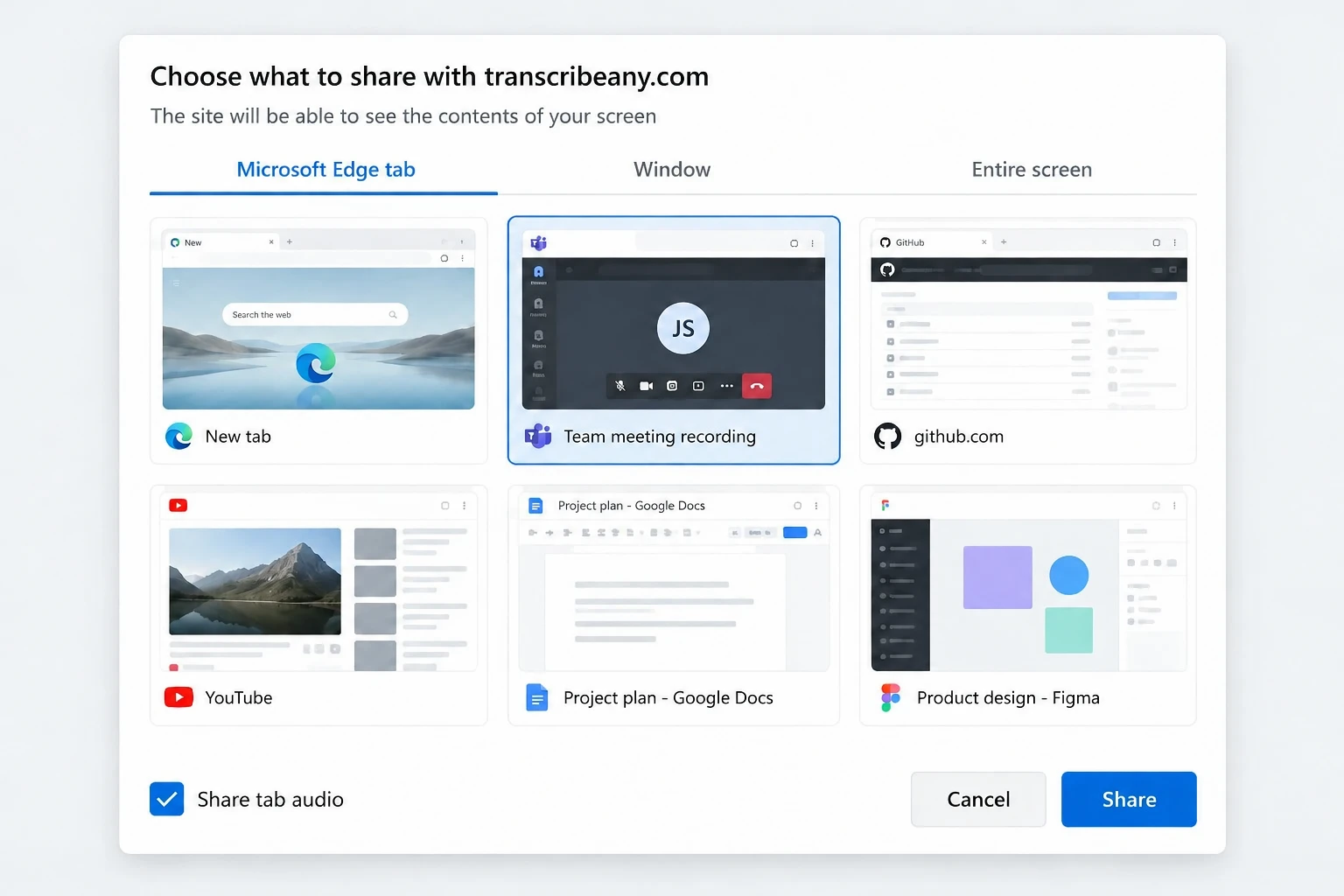
Step 3 In Microsoft Edge
- In the sharing window, open the Microsoft Edge tab section.
- Click the tab you want to record; it gets a blue outline.
- Tick Share tab audio in the bottom left corner.
- Click Share.
What Happens In Firefox And Safari
Firefox and Safari ask which window or screen you want to share, but neither one passes along the sound. TranscribeAny then tells you that no tab audio was shared and nothing is recorded or counted. Switch to Chrome or Edge for tab recording, or use Start recording with your microphone instead.
Step 4: Stop And Save
Keep the TranscribeAny tab open while you record. When you are done, click Stop in TranscribeAny, or Stop sharing in your browser's sharing bar. The last words are finished, the recording is saved to your library and you can edit, translate or export it like any other transcript.
Troubleshooting
- No words appear: check that the tab is actually playing sound and is not muted.
- No tab audio was shared: you picked a window or screen, or turned off the tab audio switch. Try again and pick a tab.
- Record a tab is missing: it appears only on desktop computers and on Pro or Business plans.
- Your own voice is not included: tab recording captures only the tab. Use Start recording if you need your microphone.
Transcribe Any Tab Live
Upgrade to Pro Unlimited to record webinars, meetings and videos straight from your browser.
See Plans