
Generic speaker labels are useful, but on a customer call they still leave you to work out who Speaker 1 and Speaker 2 are. Agent / customer roles names the two sides of a support or sales conversation in the transcript, so a reviewer can immediately see what the representative said and what the customer asked for.
Short version: turn on Speaker labels and Agent / customer roles before uploading a call. In our fictional 30-second support call, every line came back labelled Agent or Customer, and the PDF download kept the same labels.
What Agent / customer roles does
The setting first separates the voices in the recording, then labels each speaker by their role. The finished transcript and speaker list show Agent and Customer rather than numbered speakers.
- Best for one-to-one customer support, sales, onboarding and account-management calls.
- Works on uploaded recordings with Speaker labels turned on.
- Not used with Multi-channel audio, because separate audio channels already identify each speaker.
- Uses only the Agent and Customer labels; you can rename either label after transcription.
- Roles are automatic, so check the first few lines before sharing the transcript.
Try It With Your Next Call
Upload a recorded support or sales call and turn on Agent / customer roles under Transcription options.
Open The Upload PanelOur fictional example
We created a 30-second mono recording with two synthetic voices. It contains no real customer or account details. One voice played a support representative and the other played a customer who needed help signing in.
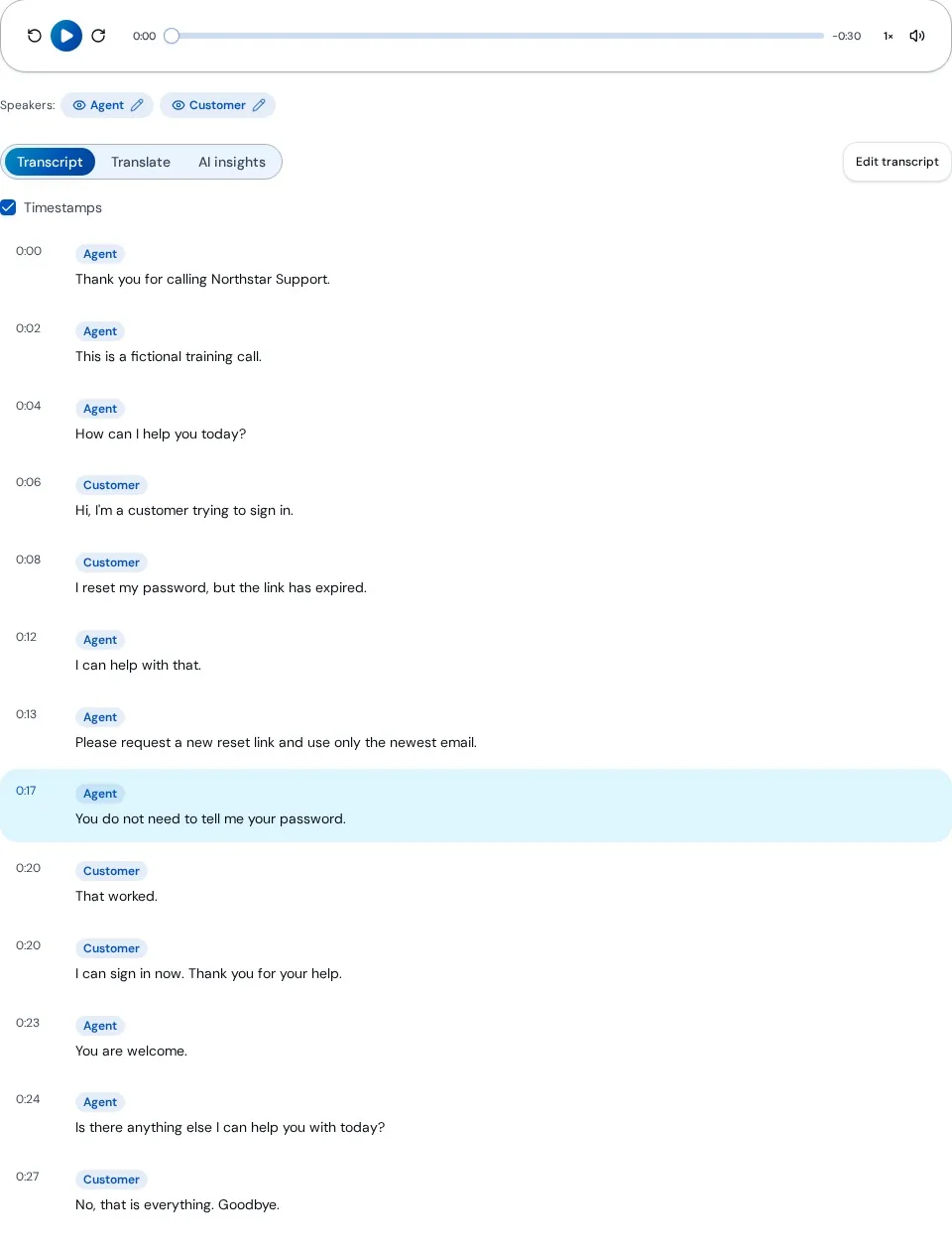
Agent: “Thank you for calling Northstar Support. This is a fictional training call.” Customer: “Hi, I’m a customer trying to sign in. I reset my password, but the link has expired.” Agent: “Please request a new reset link and use only the newest email. You do not need to tell me your password.”
Step 1: Turn on the role setting
Sign in, open New Transcription and choose Upload File. If you do not own or belong to a workspace or team, the Myself (private) and workspace choices are hidden and your recording stays private automatically. If those choices are visible, pick who the recording is for. Set the language, then expand Transcription options. Keep Speaker labels on, choose 2 speakers if you know it is a two-person call, and switch on Agent / customer roles.
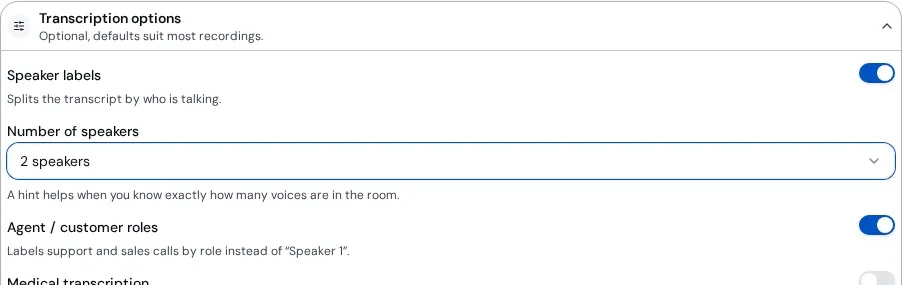
If Speaker labels are off, TranscribeAny warns that roles need speaker labels before they can take effect. If the file uses one audio channel per person, use Multi-channel audio instead; roles are skipped in that mode.
Step 2: Add the call and start
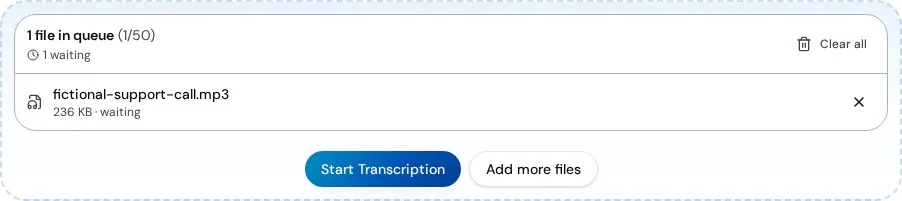
Choose files or drag the recording onto the upload area. Confirm that the right file is in the queue, then select Start Transcription. Once the upload has finished, the transcript continues in the background.
Step 3: Review the labelled transcript
Open the finished recording. The speaker list now shows Agent and Customer, and every transcript line carries one of those labels. Click a line to play that moment, especially where the speakers change quickly.
Step 4: Correct and download
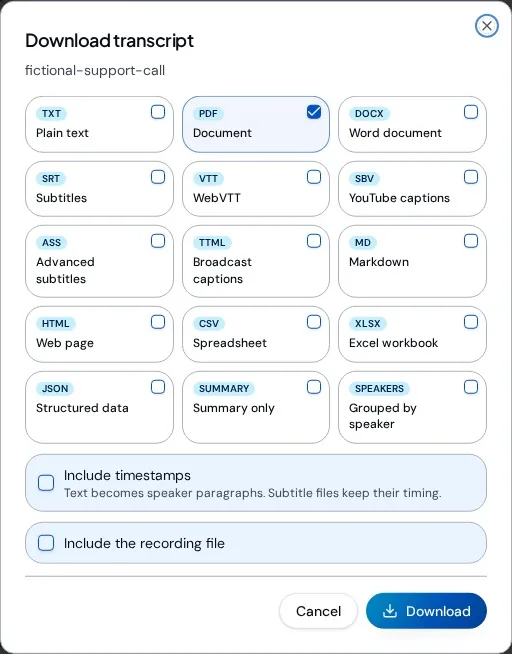
If a role is wrong, select the pencil beside it in the speaker list to rename it, or use Edit transcript for line-level fixes. Then select Download. PDF is selected by default; turn timestamps on or off, or pick more formats in the same window.
Tips for accurate roles
- Use it for clear two-sided business calls. Group meetings and interviews usually suit normal speaker labels better.
- Set the speaker count when you know it. For a standard support call, 2 speakers is a helpful hint.
- Start with good audio. Crosstalk, hold music and very short replies make speaker changes harder to identify.
- Check transfers and conference calls carefully, because more than one person may represent the business.
- Save a preset for recurring call reviews so the same speaker and role settings are ready next time.
Great uses
- Support quality reviews: find promises, troubleshooting steps and next actions quickly.
- Sales coaching: compare questions, objections and responses in the call.
- Training: build examples from fictional or approved calls without guessing who spoke.
- Follow-ups: download a readable call record or ask AI insights for action items.
Troubleshooting
- You still see Speaker 1 and Speaker 2: confirm Speaker labels and Agent / customer roles were both on, and Multi-channel audio was off.
- Labels are reversed: rename them from the speaker list, then review the transcript.
- One side has merged into the other: try the correct speaker count with Transcribe again… from the three-dot menu. Your current transcript stays until the new run succeeds.
- The recording has separate channels for each person: use Multi-channel audio instead of roles.
Need The Right Plan For Your Team?
Compare Free Unlimited, Pro Unlimited and Business Unlimited to choose the right setup for individual or shared call reviews.
Compare PlansAbout this guide
Checked on October 16, 2026 against TranscribeAny’s current upload, transcript and download screens. The audio and names are fictional, and the transcript and PDF described are the actual results from that test. Product behaviour can change with updates, so confirm the current options in the app.
Questions About Call Transcripts?
Tell us how your team records support or sales calls and we will help you choose the right settings.
Contact Support